Presentation

With the implementation of the second European Payment Services Directive (PSD2), banks were required to open their information systems. This has allowed new stakeholders and services to appear.

One of them was payment initiation, also called transfer initiation.

This payment service allows the merchant to initiate a credit transfer request sent to the buyer’s bank.

The merchant is prompted to validate the transaction via their online banking space.

The funds are then transferred via a classic SEPA Credit Transfer or SEPA Instant Credit Transfer, depending on the buyer’s choice.

Depending on the country, some banks do not offer the SEPA Instant Credit Transfer (e.g: ING France). In this case, the request is processed as a classic SEPA transfer.

In theory, the execution time of a SEPA Instant Credit Transfer is about 10s. Funds are available immediately via the merchant.

Advantages for the merchant:
  • Increased payment security: no risk of chargeback
  • Irrevocability
  • Instant receipt of funds
  • Higher limit than for the card (larger cart amount)
Advantages for the buyer:
  • Fast payment
  • Easy to use with choice of bank and account
  • European payment method
  • 100% electronic payment method (web and mobile compatible)

Supported currencies

  • EUR
Supported countries
  • France

Details

information

  • Transaction validation is automatic (no manual validation).
  • The field vads_capture_delay must be populated with 0.

Available banks

By default, only banks present in the country of the merchant’s company are suggested to the buyer.

Here is a list of available banks.

This list will be regularly updated following the evolution of the payment gateway.

France

Country Bank
France Allianz Banque
France Arkea Banque Entreprises et Institutionnels
France Arkea Banking Services
France Arkea Banque Privée
France Aumax pour moi
France AXA Banque
France Banque BCP
France Banque Courtois
France Banque de Savoie
France Banque Européenne du Crédit Mutuel
France Banque Kolb
France Banque Laydernier
France Banque Nuger
France Banque Palatine
France Banque Populaire - Val de France
France Banque Populaire - Rives de Paris + BICS
France Banque Populaire - Mediterranée
France Banque Populaire - Auvergne et Rhône-Alpes
France Banque Populaire - Grand Ouest
France Banque Populaire - Bourgogne Franche Comté
France Banque Populaire - Occitane
France Banque Populaire - Alsace Lorraine Champagne
France Banque Populaire - Aquitaine Centre Atlantique
France Banque Populaire - Sud
France Banque Populaire - Nord
France Banque Rhône Alpes
France Banque Tarneaud
France Banque Transatlantique
France BNP - Ma Banque
France BNP - Ma Banque Entreprise
France BNP - Ma Banque Pro
France BNP - Ma Banque Privée
France Boursorama
France BPE
France BRED
France Caisse d'Epargne - BTP Banque
France Caisse d'Epargne - Provence Alpes Corse
France Caisse d'Epargne - Loire Drôme Ardèche
France Caisse d'Epargne - Rhône Alpes
France Caisse d'Epargne - Languedoc-Roussillon
France Caisse d'Epargne - Hauts de France
France Caisse d'Epargne - Aquitaine Poitou-Charentes
France Caisse d'Epargne - Grand Est Europe
France Caisse d'Epargne - Midi-Pyrénées
France Caisse d'Epargne - Auvergne et Limousin
France Caisse d'Epargne - Bretagne-Pays De Loire
France Caisse d'Epargne - Côte d'Azur
France Caisse d'Epargne -
France CIC
France CIC Banque Privée
France Creatis
France Crédit Agricole - CAM Alsace Vosges
France Crédit Agricole - CAM de Centre Loire
France Crédit Agricole - CAM de l'Anjou et du Maine
Country Bank
France Crédit Agricole - CAM des Côtes d'Armor
France Crédit Agricole - CAM Nord Midi-Pyrénées
France Crédit Agricole - CAM Alpes Provence
France Crédit Agricole - CAM de Centre France
France Crédit Agricole - CAM de la Touraine et du Poitou
France Crédit Agricole - CAM de Provence Côtes d'Azur
France Crédit Agricole - CAM du Nord Est
France Crédit Agricole - CAM d'Aquitaine
France Crédit Agricole - CAM de la Réunion
France Crédit Agricole - CAM de Paris et d'Ile de France
France Crédit Agricole - CAM du Morbihan
France Crédit Agricole - CAM Charente-Maritime Deux-Sèvres
France Crédit Agricole - CAM de la Martinique et de la Guyane
France Crédit Agricole - CAM de Normandie Seine
France Crédit Agricole - CAM du Languedoc
France Crédit Agricole - CAM Val De France
France Crédit Agricole - CAM Charente Périgord
France Crédit Agricole - CAM de la Corse
France Crédit Agricole - CAM de Normandie
France Crédit Agricole - CAM du Finistère
France Crédit Agricole - CAM Toulouse31
France Crédit Agricole - CAM Champagne-Bourgogne
France Crédit Agricole - CAM de Guadeloupe
France Crédit Agricole - CAM de Nord De France
France Crédit Agricole - CAM du Centre Ouest
France Crédit Agricole - CAM Sud Rhône-Alpes
France Crédit Agricole - CAM Brie Picardie
France Crédit Agricole - CAM de Franche-Comté
France Crédit Agricole - CAM de Lorraine
France Crédit Agricole - CAM d'Ille et Vilaine
France Crédit Agricole - CAM Sud Méditerranée
France Crédit Agricole - CAM Atlantique Vendée
France Crédit Agricole - CAM de Centre-Est
France Crédit Agricole - CAM de Loire Haute-Loire
France Crédit Agricole - CAM des Savoie
France Crédit Agricole - CAM Pyrénées Gascogne
France Crédit Coopératif
France Crédit du Nord
France Crédit Maritime - CMM Grand Ouest
France Crédit Maritime - CMM Littoral du Sud Ouest
France Crédit Mutuel
France Crédit Mutuel de Bretagne
France Crédit Mutuel du Sud-Ouest
France FLOA bank
France Fortuneo
France Hello Bank!
France La Banque Postale
France LCL
France Monabanq
France Natixis
France Société de Banque Monaco
France Société Générale
France Société Marseillaise de Crédit

Technical information

Technical code Last names Supported currencies Supported countries Authorization validity period (in days) Payment process
IP_WIRE

SEPA Credit Transfer

EUR

FR

0 Deferred capture
IP_WIRE_INST

Instant SEPA Credit Transfer

0 Immediate capture
Sales channel
e-commerce
m-commerce
MOTO payment
Interactive Voice Server
Payment order by e-mail/SMS
Payment order by WhatsApp
Operations with transactions
Cancellation
Refund
Modification
Validation
Duplication
Manual reconciliation
Type of integration
Redirection
Iframe
JavaScript Client
Data collection form
API Web Services
Mobile SDK
Back Office
WhatsApp
Payment type
Immediate payment
Deferred payment
Payment in installments
Payment by subscription
Payment by file (token or batch)
One-click payment
Payment by wallet
Miscellaneous
Reporting
Transaction settlement
Chargeback settlement
Extra payment attempts

Payment process

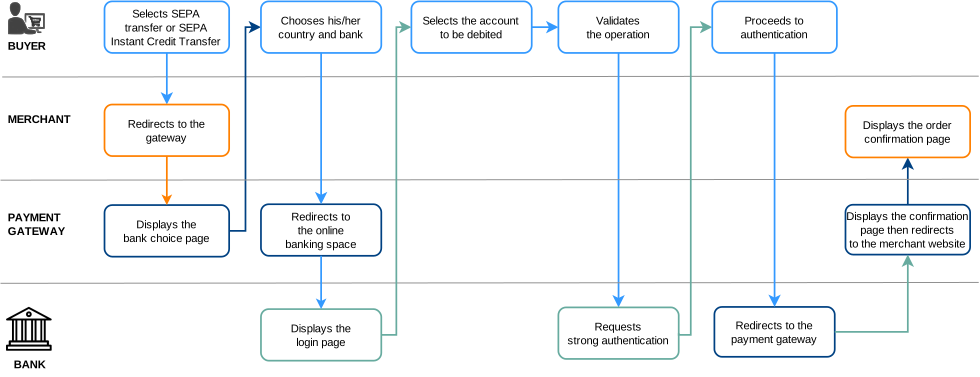
  1. The buyer chooses to settle their cart by SEPA transfer or SEPA Instant Credit Transfer.  If the buyer chooses to pay by instant credit transfer but this payment method is not supported by their bank, the gateway initiates a classic SEPA transfer request.
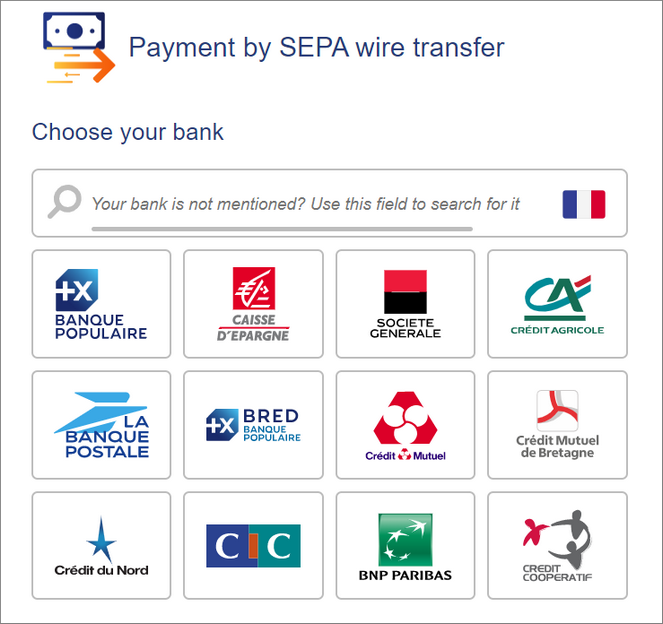
  2. The buyer chooses the bank from which the funds will be transferred.
  3. The buyer is then redirected to their online banking space with the context of the purchase.
     For some banks, to access the online banking space one needs to have opted for a strong authentication service (e.g.: Certicode Plus).
  4. If several accounts are eligible, the buyer selects the account to be debited.
  5. The buyer validates the operation.
  6. Depending on the bank, strong authentication may be required.
  7. After the payment validation, the buyer is redirected to the payment gateway and then to the merchant site.
 If the payment has been refused, the buyer cannot make a new payment attempt.

Lifecycle of a wire transfer

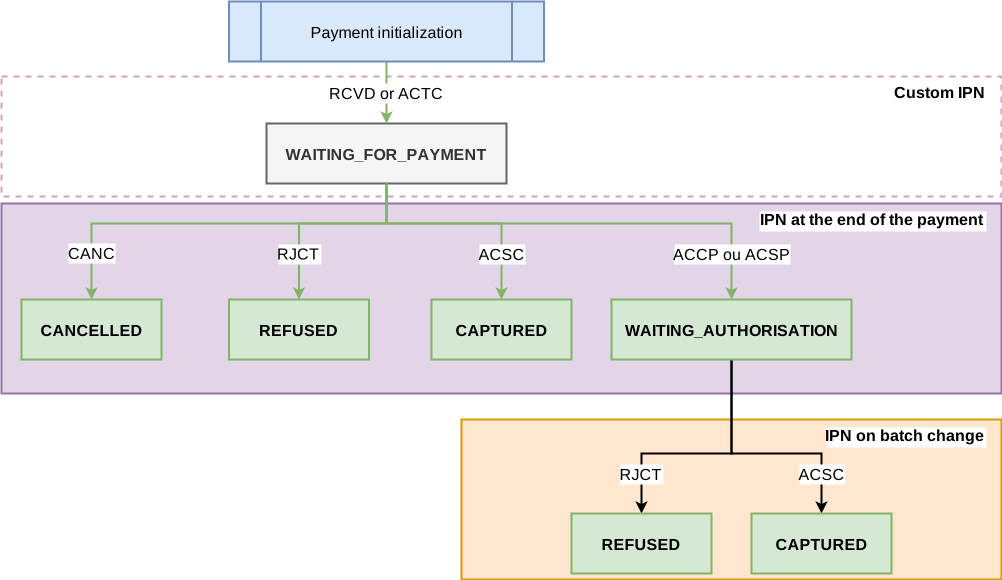
The diagram below shows the evolution of a transaction status according to the technical statuses sent by the issuing bank.

The diagram also presents the notification rules to be activated in order to allow the merchant site to update the order status.

 If you want to be notified when a transaction is created with the WAITING_FOR_PAYMENT status, see the chapter Configuring the notification of wire transfer request registration.

What should I do in case of WAITING_AUTHORISATION?

During a transfer request validated by the buyer, some banks can return an intermediate status (ACCP or ACSP or PDNG), indicating that the transfer is in progress and that all the checkups are successfully completed.

However, the compensation (i.e. the movement from one account to another) is not yet performed.

Depending on the bank, the delay for receiving the final ACSC status may vary between 1 hour and 72 hours.

Public holidays and non-business days may delay status updates.

In order not to block the order, the merchant site may decide to take the risk of releasing the order with an intermediate status (ACCP ou ACSP ou PDNG) before receiving the final ACSC status.

Some banks (such as ING France) may not give priority to the execution of the transfer in the event of other priority debits.

However, a large number of banks directly return the ACSC status in case of a SEPA transfer on the day.


To this day, LCL never returns the final ACSC status. LCL plans to change this non-compliant behavior, but we don't yet have a date.

In this case, in order to not block the merchant, the transaction is created with a CAPTURED status, but we cannot guarantee that it is 100% executed. A RJCT status could intervene in some very rare cases.

Payment reconciliation

To help the merchant reconcile the completed transactions (on the payment gateway) with the cash flows appearing on the merchant’s bank statement, the payment gateway transmits two pieces of information with end-to-end encryption:
  • the UUID of the transaction (End-To-End ID),
  • the payment details (Remittance Information).
This information may appear on both the payer’s and merchant’s account statements.

the payment details (Remittance Information) is a 140-character string consisting of:

:UUID:ORDER_ID:SOFT_DESCRIPTOR
where:
  • UUID corresponds to the 32 character long unique transaction identifier (vads_trans_uuid),
  • ORDER_ID corresponds to the 64 character long order number if the merchant transmits the data in vads_order_id,
  • SOFT_DESCRIPTOR corresponds to the payment description (soft descriptor) defined for the contract. If the data is not specified for the contract, the shop reference will be used.
Examples for the "DEMO STORE" shop with an empty Soft Descriptor:
  • with order ID in the query:
    :fcfd84b23fb84c01abc7508c8850872d:MyOrderId626958cb71991:DEMO STORE
  • without order ID in the query:

    :0bb6f854baf94985ba567d4744014bf6::DEMO STORE
Examples for the "DEMO STORE" shop with a Soft Descriptor set to "mystore.com":
  • with order ID in the query:
    :fcfd84b23fb84c01abc7508c8850872d:MyOrderId626958cb71991:mystore.com
  • without order ID in the query:

    :0bb6f854baf94985ba567d4744014bf6::mystore.com
 Some banks do not transmit (or alter) the End-To-End ID or the contents of the Remittance Information. This is why the transaction UUID is sent in both records.  In case of SEPA Instant Credit Transfers, some banks do not display the End-To-End ID or the Remittance Information. In this case, reconciliation is impossible.

Setting up notifications

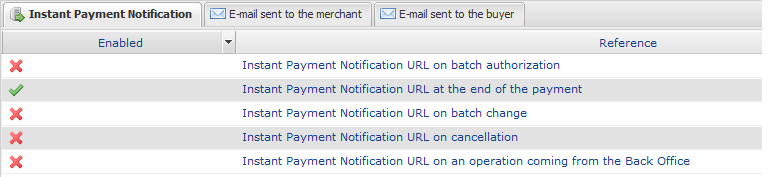
The Merchant Back Office provides several types of notifications:

  • Instant Payment Notification URL call
  • E-mail sent to the merchant
  • E-mail sent to the buyer
  • SMS sent to the merchant
  • SMS sent to the buyer

The notification is sent according to the event that takes place (payment accepted, abandonment by the buyer, cancellation by the merchant, etc.).

 Instant Payment Notification URL call-type notifications are the most important. They are the only reliable way for the merchant website to obtain the payment result.

Instant Payment Notification URL failed

If the platform is unable to reach your URL, it sends an e-mail to the specified address.

This e-mail contains:
  • the HTTP code of the encountered;
  • Parts of analysis depending on the error;
  • the consequences of error;
  • instructions via the Merchant Back Office to resend the request to the previously defined URL.

Access to notification rules management

Go to the following menu Settings > Notification rules.

Setting up the Instant Payment Notification

The payment gateway notifies on the merchant website in the following cases:

  • Payment accepted
  • Payment refused
 

This notification is required to communicate the result of the payment request.

It informs the merchant website of the payment result even if your client has not clicked the Return to the shop button.

  1. Right-click Instant Payment Notification URL at the end of the payment.
  2. Select Manage the rule.
  3. Enter the E-mail address(es) to notify in case of failure field in the "General settings” section. To specify several e-mail addresses, separate them with a semi colon (;).
  4. To allow the platform to automatically resend the notification in the event of failure, check the Automatic retry in case of failure box. This mechanism allows up to 4 attempts to be made.
  5. If you wish to receive notifications in API Form format, enter the URL of your page in URL to notify in TEST mode and URL to notify in PRODUCTION mode field in the "Instant Payment Notification URL of the API form V1, V2” section.
  6. Save the changes.

Setting up a notification on batch change

This rule notifies the merchant site when a transaction created with the temporary status WAITING_AUTHORIZATION is finally accepted or refused.

  1. Right-click Instant Payment Notification URL on batch change.
  2. Select Manage the rule.
  3. Enter the E-mail address(es) to notify in case of failure field in the "General settings” section. To specify several e-mail addresses, separate them with a semi colon (;).
  4. Check the box Automatic retry in case of failure if you wish to authorize the gateway to automatically resend the notification in case of a failure (can be done up to 4 times).
  5. In the Instant Payment Notification URL of the API form V1, V2 section, specify the URL of your page in the fields URL to notify in TEST mode and URL to notify in PRODUCTION mode.
  6. Save the changes.
  7. Enable the rule by right-clicking Instant Payment Notification URL on batch change and select Enable the rule.

Configuring the notification of wire transfer request registration

By default, no notifications are sent to the merchant website when an payment request is recorded and the buyer is redirected to his bank space (WAITING_FOR_PAYMENT transaction status).

However, if you want to be notified, you can create a specific notification rule.

Via the menu: Settings > Notification rules menu.

  1. Click on the button Create a rule at the bottom left side of the screen.
  2. Select Advanced notification.
  3. Select the type of Instant Payment Notification URL call notification.
  4. Click Next.
  5. Select the trigger event: Pending payment waiting for a confirmation of the external platform.
  6. In the Rule condition section, add the following condition:
    • Variable: Payment method
    • Operator: is on the list
    • Value: SEPA Credit Transfer and Instant SEPA Credit Transfer
  7. Click Next.
  8. In the General settings, fill in the fields:
    • Rule reference
    • E-mail address to notify in case of failure
    • Automatic retry in case of failure
  9. If you wish to receive notifications in API Form format, enter the URL of your page in URL to notify in TEST mode and URL to notify in PRODUCTION mode field in the "Instant Payment Notification URL of the API form V1, V2” section.
  10. Click Create.

Establishing interaction with the payment gateway

The interaction with the payment gateway is described in the Hosted Payment Page guide:

The merchant website and the payment gateway interact by exchanging data.

To create a payment, this data is sent in an HTML form via the buyer’s browser.

At the end of the payment, the result is transmitted to the merchant website in two ways:

To guarantee the security of the exchange, the data is signed with a key known only to the merchant and the payment gateway.

Generating a payment form

To generate a payment request, you must create an HTML form as follows:
<form method="POST" action="https://secure.payzen.eu/vads-payment/">
 <input type="hidden" name="parameter1" value="value1" />
 <input type="hidden" name="parameter2" value="value2" />
 <input type="hidden" name="parameter3" value="value3" />
 <input type="hidden" name="signature" value="signature"/>
 <input type="submit" name="pay" value="Pay"/>
</form>

It contains:

  • The following technical elements:
    • The <form> and </form> tags that allow to create an HTML form.
    • The method="POST" attribute that defines the method used for sending data.
    • The action="https://secure.payzen.eu/vads-payment/" attribute that defines where to send the form data.
  • Form data:
    • The shop ID.
    • Information about the payment depending on the use case.
    • Additional information depending on your needs.
    • The signature that ensures the integrity of the form.

    This data is added to the form by using the <input> tag:

    <input type="hidden" name="parameter1" value="value1" />

    For setting the name and value attributes, see the Data dictionary chapter also available in the online document archive.

    All the data in the form must be encoded in UTF-8.

    This will allow for the special characters (accents, punctuation marks, etc.) to be correctly interpreted by the payment gateway. Otherwise, the signature will be computed incorrectly and the form will be rejected.

  • The Pay button for submitting the data:

    <input type="submit" name="pay" value="Pay"/>

Different use cases are presented in the chapters below. They will allow you to adapt your payment form to your needs.

The following table lists the different formats that you can encounter when building your form.

Notation Description
a Alphabetic characters (from ‘A’ to ‘Z’ and from ‘a’ to ‘z’)
n Numeric characters
s Special characters
an Alphanumeric characters
ans Alphanumeric and special characters (except ‘<’ and ‘>’)
3 Fixed length of 3 characters
..12 Variable length up to 12 characters
json JavaScript Object Notation.

Object containing key/value pairs separated by commas.

It starts with a left brace “{” and ends with a right brace “}”.

Each key / value pair contains the name of the key between double-quotes followed by " : ”, followed by a value.

The name of the key must be alphanumeric.

The value can be:
  • a chain of characters (in this case it must be framed by double-quotes)
  • a number
  • an object
  • a table
  • a boolean
  • empty
Example: {"name1":45,"name2":"value2", "name3":false}
bool

Boolean. Can be populated with the true or false value.

enum

Defines a field with a complete list of values.

The list of possible values ​​is given in the field definition.

Enum list List of values ​​separated by a “ ; ”.

The list of possible values ​​is given in the field definition.

Example: vads_available_languages=fr;en

map List of key / value pairs ​​separated by a " ; ".

Each key / value pair contains the name of the key followed by " = ", followed by a value.

The value can be:
  • a chain of characters
  • a boolean
  • a json object
  • an xml object

The list of possible values ​​​​for each key/value pair is provided in the field definition.

Example: vads_theme_config=SIMPLIFIED_DISPLAY=true;RESPONSIVE_MODEL=Model_1

Creating a SEPA Credit Transfer request

 In case of a classic transfer, if the due date falls on a weekend, a non-business day or a holiday, then the transfer will be executed on the next business day.
  1. Use all the fields presented in the table below to create your payment form.
    Field name Description Format Value
    vads_payment_cards Allows you to force the payment method type to be used. It is recommended to provide a different payment button for each payment method on the merchant website. enum
    • IP_WIRE : to directly call the SEPA Credit Transfer payment button.
    • IP_WIRE_INST: to directly call the Instant SEPA Credit Transfer payment button.
    • IP_WIRE;IPWIRE_INST: to provide the choice between a classic wire transfer and an instant credit transfer.
    vads_order_id Order ID

    Can contain uppercase or lowercase characters, numbers or hyphens ([A-Z] [a-z], 0-9, _, -).

    ans..64 E.g.: 2-XQ001
    vads_amount Payment amount in the smallest currency unit (cents for euro) n..12 E.g.: 4525 for EUR 45.25
    vads_currency Numeric currency code to be used for the payment, in compliance with the ISO 4217 standard (numeric code). n3 Possible values:
    • 978 (EUR)
    vads_capture_delay Capture delay. n..3
    • 0: Immediate payment.

      Default value.

      The field must always be set to 0.

    vads_payment_config Payment type enum SINGLE
    vads_action_mode Acquisition mode for payment method data enum INTERACTIVE
    vads_page_action Action to perform enum PAYMENT
    vads_ctx_mode Mode of interaction with the payment gateway enum TEST or PRODUCTION
    vads_site_id Shop ID n8 E.g.: 12345678
    vads_trans_date Date and time of the payment form in UTC format n14

    Respect the YYYYMMDDHHMMSS format

    E.g.: 20200101130025
    vads_trans_id Transaction number.

    Must be unique within the same day (from 00:00:00 UTC to 23:59:59 UTC).

    Warning: this field is not case sensitive.

    an6 E.g.: xrT15p
    vads_version Version of the exchange protocol with the payment gateway enum V2
  2. Add optional fields according to your requirements (see Using additional features chapter of the Implementation Guide Hosted Payment Page).
  3. Compute the value of the signature field using all the fields of your form that start with vads_ (see: Computing the signature Implementation Guide Hosted Payment Page available on our documentation site).

Sending the payment request

To finalize a purchase, the buyer must be redirected to the payment page.

His browser must transmit the payment form data.

Redirecting the buyer to the payment page

The URL of the payment gateway is:

Example of parameters sent to the payment gateway:

<form method="POST" action="https://secure.payzen.eu/vads-payment/">
<input type="hidden" name="vads_action_mode" value="INTERACTIVE" /> 
<input type="hidden" name="vads_amount" value="1315" /> 
<input type="hidden" name="vads_currency" value="978" />
<input type="hidden" name="vads_cust_id" value="1234" />
<input type="hidden" name="vads_cust_email" value="jg@sample.com" />
<input type="hidden" name="vads_ctx_mode" value="TEST" />
<input type="hidden" name="vads_order_id" value="CMD012859" />
<input type="hidden" name="vads_page_action" value="PAYMENT" />
<input type="hidden" name="vads_payment_cards" value="IP_WIRE;IP_WIRE_INST" />
<input type="hidden" name="vads_payment_config" value="SINGLE" />
<input type="hidden" name="vads_site_id" value="12345678" /> 
<input type="hidden" name="vads_trans_date" value="20220326101407" /> 
<input type="hidden" name="vads_trans_id" value="362812" /> 
<input type="hidden" name="vads_version" value="V2" />
<input type="hidden" name=”signature" value="NM25DPLKEbtGEHCDHn8MBT4ki6aJI/ODaWhCzCnAfvY="/>
<input type="submit" name="pay" value=”Pay"/>
</form>

Processing errors

If the payment gateway detects an error while receiving the form, an error message is displayed and the buyer can not be to proceed to the payment.

In test mode:

The message indicates the source of the error and provides a link to the error code description to help you fix it.

In production mode:

The message indicates to the buyer that a technical problem has occurred.

In both cases, the merchant receives a warning e-mail containing the information:

  • the source of the error;
  • a link to possible causes to facilitate its analysis;
  • all the fields of the form.

A description of the error codes with their possible causes is available on our website:

https://payzen.io/fr-FR/error-code/error-00.html

Analyzing the payment result

The analysis of payment results is described in detail in the Hosted Payment Page guide.

This guide covers the processing of data specific to an Virement SEPA payment response only.

Processing the response data

Here is an example of analysis to guide you through processing the response data.

  1. Identify the order by retrieving the value of the vads_order_id field if you have transmitted it in the payment form.
    Make sure that the order status has not been updated yet.
  2. Retrieve the payment result transmitted in the vads_trans_status field.
    Its value allows you to define the order status.
    VALUE DESCRIPTION
    CAPTURED

    Captured

    The transaction is accepted.

    It is visible in the tab Captured transactions.

    Debit is immediate (no capture file is sent to the acquirer).

    REFUSED

    Refused

    Transaction is refused.

    CANCELLED Canceled

    The payment has been canceled by the buyer.

    WAITING_AUTHORISATION Waiting for authorization

    The payment is validated by the buyer, but the transfer has not yet been processed.

     This status is temporary. To be notified of the final result, you must enable the notification rule Instant Payment Notification URL on batch change.
    WAITING_FOR_PAYMENT Waiting for payment

    The buyer was redirected to their online banking space.

    This status is temporary. It is never returned in the end of payment notification, but can be obtained:
    • if you manually execute the notification from the Merchant Back Office
    • or if you create a notification rule that is triggered on the event "Pending payment waiting for a confirmation of the external platform".
  3. Retrieve the field vads_trans_uuid containing the transaction unique reference generated by the payment server.
  4. Retrieve the value of the vads_trans_date field to identify the payment date.
  5. Retrieve the used amount and currency. To do this, retrieve the values of the following fields:
    Field name Description
    vads_amount Payment amount in the smallest currency unit
    vads_currency Numeric code of the currency used for the payment
  6. Retrieve the payment method data used for the payment by analyzing the following fields:
    Field name Description
    vads_card_brand Payment method. Possible values:
    • IP_WIRE : SEPA Credit Transfer.  The IP_WIRE value can be returned when:
      • The buyer’s bank does not support the SEPA Instant Credit Transfer. The request is automatically qualified as a classic SEPA transfer request.
      • The buyer’s and merchant’s accounts are from the same Caisse Régionale du Crédit Agricole, the bank imposes to automatically qualify the request as a classic SEPA transfer, even if the request is processed as an instant credit transfer.
    • IP_WIRE_INST : Instant SEPA Credit Transfer.
    vads_card_number Payer’s IBAN
    vads_acquirer_network Acquirer network code Set to IP.
  7. Retrieve all the order, buyer and shipping details.
    These details will be provided in the response only of they have been transmitted in the payment form.
    Their values are identical to the ones submitted in the form.
  8. Proceed to order update.

Analyzing the reason for rejection

The reason for rejection is transmitted in the vads_auth_result field.

This field is set to:
  • 00 when the payment is accepted,
  • one of the values below when the payment is refused:
Returned codes for SEPA Credit Transfer:
Codes Description
00 The payment is accepted.
80 AC01: The account number is either invalid or does not exist.

Incorrect IBAN/BIC, or account currency different from euro.

81 AC04: The account is closed and cannot be used.
82 AC06: The account is blocked and cannot be used.
83 AG01: Transaction forbidden for this type of account.

E.g.: savings account.

84 AM18: The number of transactions exceeds the acceptance limit of the Account Servicing Payment Service Provider (ASPSP).
85 CH03: The requested execution date is too far in the future.
86 CUST: The reject is due to the debtor: refusal or insufficient funds.
87 DS02: An authorized user has cancelled the order.
88 FF01: The reject is due to the original payment request which is invalid (syntax, structure or values).
89 FRAD: The payment request is considered as fraudulent.
90 MS03: No reason specified by the Account Servicing Payment Service Provider (ASPSP).
91 NOAS: The PSU has neither accepted nor rejected the payment request and the time-out period has expired.
92 RR01: The account and/or debtor identification is missing or inconsistent.
93 RR03: Specification of the creditor’s name and/or address needed for regulatory requirements is incomplete or missing.
94 RR04: Rejection for regulatory reasons.
95 RR12: Invalid or missing identification required for a particular country or payment type.
96 DUPL: Duplicate operation.
97 TECH: Technical error

Obtaining help

Viewing online documentation

Getting in touch with technical support

For any technical inquiries or if you need any help, contact assistance.

Our services are available from Monday to Friday, from 09:00 a.m to 6:00 p.m..

In view of facilitating the processing of your requests, please have your shop ID ready (an 8-digit number).

This information is available in the “registration of your shop” e-mail or in the Merchant Back Office (Settings > Shop > Configuration).